What to Remove From Your Car Before a Private Sale
Before a private sale, remove phone pairings, delete app accounts, sign out of connected services, cancel subscriptions, and factory-reset every infotainment and telematics system. If you skip any of these, the buyer may keep access to your contacts, location history, and remote controls. That can expose private data and let someone open, start, or track the car after you hand over the keys. This guide covers what to erase, unlink, revoke, and verify before the sale is final.
What personal data can stay in the car?
Modern cars can keep data in more than one place at once. A quick reset may clear the screen while leaving cloud-linked accounts, paired phones, navigation history, or digital key permissions in place, so it is usually wise to remove the data in the car and in any companion app or account tied to it.
Privacy checklist
| System | What to remove | Where it is usually found | Reset or unlink? | Verification step |
|---|---|---|---|---|
| Infotainment | Saved contacts, paired phones, recent call logs, saved destinations, app logins | Settings, phone, contacts, navigation, apps, system | Reset if available; also delete saved items first | Open the phone, navigation, and user menus to confirm they are empty |
| Bluetooth | Paired device history, speakerphone links, message access, call history sync | Bluetooth or device manager menu | Unlink and delete each device | Check that your phone no longer appears in the pairing list |
| Navigation | Recent destinations, home and work addresses, favorites, voice destinations | Navigation, recent, favorites, voice or address book | Delete entries and clear history | Search the destination list for your home, work, and common stops |
| Connected services | Remote lock, remote start, location tracking, subscription access | Brand app, owner portal, subscription page | Remove vehicle access and cancel or transfer service | Check that remote commands fail after removal |
| Digital keys | Phone-as-key access, shared key permissions, authorized devices | Companion app, digital key settings, phone wallet | Revoke devices and delete shared access | Try the app and phone after revocation; they should no longer start or open the car |
| Garage opener memory | HomeLink or similar button codes, rolling-code pairing | Overhead console or mirror buttons | Reset or overwrite stored codes | Press each button and confirm the garage does not respond |
| Toll and parking | Saved cards, toll account links, parking app ties, recurring renewals | Payment settings, linked accounts, billing page | Unlink or cancel; remove saved payment methods | Review the billing page for active vehicle-linked charges |
| USB media | Contacts, playlists, photos, cached phone data, music libraries | USB ports, media browser, connected device history | Delete media and remove devices | Open each USB source and confirm no personal files remain |
What should you remove from the infotainment system?
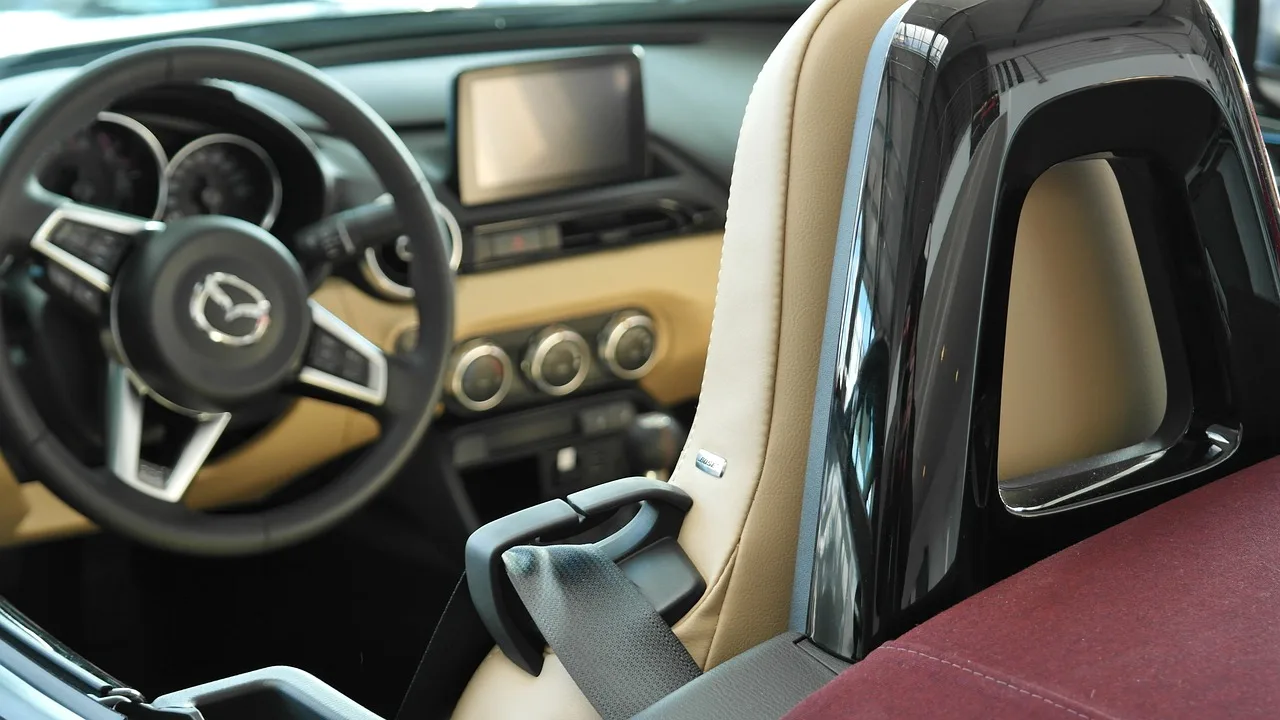
Factory reset the infotainment system if the car offers one, but do not stop there. Many systems keep saved contacts, paired phones, navigation favorites, app logins, and call history until you delete them separately, and some vehicles leave parts of that data behind after a partial reset.
Clear the screen and the stored data
-
Open the system settings. Go to the settings or setup menu and look for a factory reset, master reset, or delete personal data option. Use the vehicle’s menu, not a phone app, because the data lives in the head unit as well as in any synced account.
-
Remove saved user items first. Delete saved contacts, call logs, home addresses, recent destinations, profiles, and app logins before the reset. That reduces the chance of partial retention on brands that separate local data from account data.
-
Run the reset. Confirm the factory reset and let it finish without turning the car off. Some systems take a few minutes and may reboot more than once, so do not interrupt the process unless the owner’s manual says to do so.
-
Verify each menu. Reopen the phone, navigation, and app sections after the reset. If the menus still show names, destinations, or signed-in services, clear them manually before handoff.
Say your sedan’s screen offers a reset button but the phone menu still lists two paired devices afterward. That means the reset was partial, not complete. Remove the leftover devices by hand, then check the navigation and user profiles again before you hand over the key fob.
What the reset may not erase
A full reset often clears the local interface, but it may not disconnect a brand account or a companion app that still knows the vehicle. It can also leave USB media indexes, navigation favorites, or user profiles on some systems, especially if the car uses multiple memory stores.
How do you clear Bluetooth and phone links?
Removing a phone pairing is necessary, but it is usually not enough by itself. You also need to remove the device from the Bluetooth history, stop message and call syncing, and delete any speakerphone permissions so the new owner does not inherit your call or text access.
Delete every paired device
-
Open Bluetooth device settings. Find the paired devices or device manager list in the infotainment menu. Remove every phone, tablet, and headset entry tied to you or your household.
-
Clear call and message access. Turn off contact access, message access, and call history sync for each paired phone before deletion if the menu allows it. That matters because some cars keep permission records even after the device disappears from the main list.
-
Forget the car on the phone. On the phone, open Bluetooth settings and choose forget or remove for the vehicle. This cuts the link from both sides and helps prevent the phone from reconnecting the next time it is nearby.
-
Check for auto-reconnect. After removing the devices, restart the car and make sure your phone does not reconnect by itself. If it does, repeat the deletion and clear any saved profiles or guest-user shortcuts.
Suppose the car still reads out your contact names over speakerphone after the pair list looks empty. That usually means the phone address book or call permission was left in the head unit. Delete the profile, not just the pairing entry.
How do you disconnect connected services and apps?
Connected services can keep more control than the dashboard shows. Remote lock, remote start, vehicle location tracking, and app-based access usually live in the brand account, so you need to sign out in the app, remove the vehicle from the account, and cancel or transfer the subscription if the service is active.
Cut off remote access
-
Open the owner account. Sign in to the connected-services app or web portal and look for vehicle access, subscriptions, and account management. If the car is still listed there, remove it before the sale.
-
Revoke remote commands. Turn off remote lock, open, remote start, and vehicle location sharing. These features can remain active even after the infotainment screen is reset, which is why account-level removal matters.
-
Cancel or transfer service. End the subscription or transfer it only if the brand supports a clean owner change. If charges renew monthly or yearly, stop them now so the new owner is not billed through your account.
-
Request a login reset if needed. If you no longer have the original login, contact the service provider to remove the vehicle from the old account. A prior owner’s active account can block clean handoff and may still expose telematics data.
A common first-timer mistake is assuming the dealer or buyer can sort out the app later. They usually do not need your login, and they should not have it. The vehicle should be detached from the account before the keys change hands.
If the old account is still active
If the car is still tied to a previous owner account, that account should be removed through the brand’s support process before you rely on a reset. A local wipe will not always delete cloud authorizations, and some telematics systems can continue to answer remote commands until the account is detached.
How do you remove digital keys and garage codes?
Digital keys can stay active after a simple reset, especially when the vehicle is authorized through a phone wallet, companion app, or shared-owner setup. Garage opener memory is separate again, so clear the car’s stored button codes and verify that the garage no longer responds.
Revoke phone and shared keys
-
Open digital key settings. Check the companion app, phone wallet, and vehicle account for phone-as-key permissions or shared access. Remove any device that can start or open the car.
-
Delete shared access grants. Remove family, guest, and temporary key shares from the account and from the vehicle user list. If the system uses owner authorization, confirm the vehicle no longer shows your device as approved.
-
Revoke the device. If the brand offers device revocation, use it for each phone or watch. This is stronger than signing out, because it cuts the authorization stored on the car or in the cloud.
-
Clear garage memory. Hold the HomeLink or similar buttons and follow the vehicle’s reset method to erase stored codes. Then test each button against the garage door; if it still responds, the pairing is still active.
Picture a compact SUV with three garage buttons in the mirror and a phone that still opens the car from the driveway. Those two systems are separate. You need to remove both, or the buyer may inherit remote access without realizing it.
What about toll, parking, and payment data?
Payment data can travel farther than most sellers expect. Saved cards, toll tags, parking app links, and subscription renewals can all remain attached to the vehicle or to your account, so remove those links before delivery and check for recurring charges that keep billing after the sale.
Close out billing ties
-
Remove saved cards. Delete any stored payment methods from the infotainment system, companion app, toll portal, and parking app. This keeps the buyer from making charges through your account and limits exposure if the app stays signed in elsewhere.
-
Unlink toll accounts. Detach the vehicle from toll tags or toll payment profiles, then remove the license plate if the account uses plate billing. Some toll systems keep charging by plate even after the vehicle leaves your driveway.
-
Cancel renewals. Review connected-service billing, parking subscriptions, and automatic renewals linked to the car. Stop anything that will continue after the sale date unless it is being transferred to the buyer through an official process.
-
Check the billing pages. Reopen each account and confirm there are no active vehicle-linked charges, shared devices, or pending renewals. That final check catches services that were hidden behind a different menu or payment portal.
What should you verify before the buyer takes the keys?
Do a final pass at the car itself and in every account tied to it. The goal is simple: the buyer should be able to drive the car, but not see your contacts, open your garage, or trigger your remote services from a phone or app.
-
Confirm the head unit is empty. Check contacts, destinations, paired devices, recent calls, and saved profiles. If any of those still appear, clear them before the handoff.
-
Test remote features. Try a remote command only if the service has already been removed from your account. The command should fail or show that the vehicle is no longer enrolled.
-
Check your phone and wallet. Remove the car from Bluetooth, the companion app, and any digital key wallet on your devices. This prevents accidental reconnection after the sale.
-
Inspect USB and storage. Remove USB drives, memory cards, and any cached media or phone data. A head unit can remember playlists, files, and contact indexes even when the cabin looks clean.
What happens if you leave the car linked to your phone after the sale? The new owner may be able to see your saved destinations, use your remote access, or reconnect through an app that still trusts your device. That is why the last check matters as much as the first reset.
Frequently asked questions
What should I delete from my car before selling it privately?
Delete saved contacts, call logs, paired phones, navigation history, home and work addresses, app logins, digital keys, garage opener memory, toll links, parking app links, and any saved cards. Then verify the car no longer appears in your phone, brand app, or connected-services account.
How do I remove my phone from my car’s Bluetooth before selling?
Open the Bluetooth or device menu in the infotainment system, remove your phone from the pairing list, and then forget the car on the phone itself. Also clear message access, call history sync, and speakerphone permissions if the system stores them separately.
Do I need to erase navigation history before a private car sale?
Yes. Clear recent destinations, home and work addresses, favorites, and any voice-entered locations. Navigation data can survive a partial reset, and a buyer may still be able to see places you visit often or use saved routes tied to your account.
How do I disconnect connected services like OnStar, Uconnect, or app access?
Sign in to the owner portal or companion app, remove the vehicle, cancel or transfer the subscription, and revoke remote lock, open, start, and location access. If you cannot sign in, contact the service provider so the vehicle is detached from the old account.
Should I factory reset the infotainment system before selling my car?
Yes, if the vehicle offers a reset. Use it after removing saved contacts, pairings, and logins, because some systems keep fragments of data after a partial wipe. Then check the menus again to confirm the reset cleared the user profile and media history.
What should I do with toll tags, parking apps, and payment data before selling?
Remove saved cards, unlink toll tags and plate billing, cancel recurring renewals, and detach any parking app tied to the vehicle. Review billing pages for active charges after the removal, because toll and parking systems can keep billing even after the car changes hands.